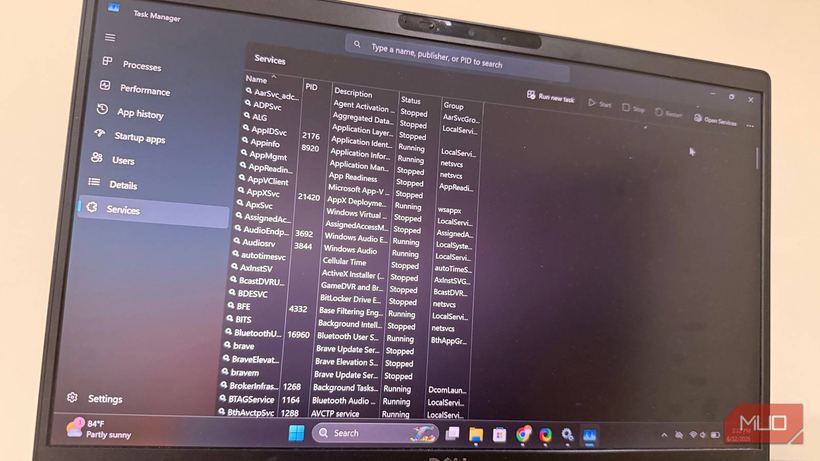
Since the launch of Windows, dozens of processes have been running in the background. Most of them were created for corporate networks—offices, schools, and government agencies. Home users get all of this "bundled in," even though they will never need most of these services.
If your computer is running slower than it should for no apparent reason, the culprit could be four services that start automatically and waste system resources.
Four services worth checking
— Print Spooler. Manages print jobs and runs constantly—even if you don't have a printer. In 2021, a serious vulnerability called PrintNightmare was discovered in this service. Microsoft patched it, but the logic is simple: no printer means no reason to keep the service running.
— Smart Card. Required for logging into the system using a physical identification card. It is used in government agencies, the military, and large corporations. An average home user does not need it.
— Distributed Link Tracking Client. Helps Windows locate files if they have been moved and updates shortcuts. Useful in corporate networks with shared drives. At home, where files are stored locally or in the cloud, the service just sits idle.
— Windows Search. Indexes all files on the drive so that the built-in search works quickly. This is the most resource-intensive of the four: it constantly writes to the disk, consuming RAM and CPU power. On older computers with an HDD, this is especially noticeable as random lags during operation.
How to disable an unnecessary service
1. Press Win + R, type `services.msc` and press Enter.
2. Find the required service in the list.
3. Double-click on it to open its properties.
4. Read the service description to make sure you don't need it.
5. In the "Startup type" field, select "Disabled".
6. Click the "Stop" button, then "Apply" and "OK".
7. Restart your computer and use it normally for a few days.
If nothing breaks, the service is definitely unneeded. If something goes wrong, change the startup type back to its previous value ("Automatic" or "Manual").
What to do with Windows Search
Instead of just disabling Windows Search, it is better to replace it. The free Everything utility works much faster than the built-in search and finds files instantly—without constant background indexing.
Conclusion
Disabling unnecessary services requires no special knowledge and costs nothing. The main thing is to proceed step by step: disable one, wait, make sure everything works, and move on to the next.
If your computer continues to lag after all these steps, the cause may be deeper: overheating, a worn-out storage drive, or RAM issues. Bring it to iClub Service for diagnostics—we will figure out the cause and tell you what needs to be done.