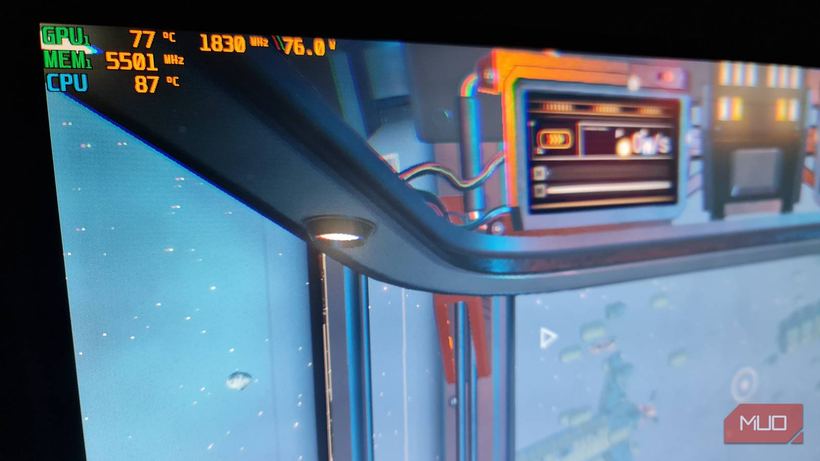
If your laptop heats up above 90–100°C in games or under heavy load and starts lagging, there's a Windows setting that almost no one touches. In literally a minute, it lowers the CPU working temperature by 30–40 degrees without any noticeable loss in performance.
At our repair shop, people bring in laptops complaining about overheating and lagging in games every single week. Most often, these are ASUS TUF Gaming, Lenovo Legion, MSI Katana, and similar gaming rigs. We start with the obvious — replacing the thermal paste, cleaning the fans, checking airflow. Sometimes this drops temperatures by 3–5 degrees. But one day I was working on a laptop where, even after a full cleaning and thermal paste replacement, the CPU stubbornly stayed at 115–120°C under load. What fixed it was completely unexpected.
What's happening inside
Modern CPUs are capable of boosting — sharply increasing their clock speed above the base frequency whenever the system allows it. By default in Windows, the "Maximum processor state" setting is set to 100%. This means the OS gives the CPU the green light to boost to maximum under any load — even when just opening the Start menu. The CPU constantly boosts, overheats, throttles down, and boosts again. It's a vicious cycle — and that's exactly what causes FPS drops and whining fans.
How to fix it — takes two minutes
Open Control Panel (the classic one, not "Settings") → Power Options → Change plan settings → Change advanced power settings. In the window that opens, find the "Processor power management" section and inside it, "Maximum processor state". Set it to 99% instead of 100%.
Click "Apply" and immediately open any temperature monitoring tool — HWiNFO or HWMonitor, both are free and publicly available.
On that machine, the result was immediate: idle CPU temperature dropped from 85°C to 52°C, and under gaming load — from 118°C to 63°C. The fans went almost completely quiet.
Why does one percent make such a difference? 🤔
It's not about performance loss — you won't feel a 1% drop in speed. The key is that this specific value disables the aggressive boost mode. The CPU stops sprinting, hitting the thermal barrier, and throttling back. It maintains a stable frequency without constant rollercoasters. As a result, actual gaming performance doesn't drop — because thermal throttling (forced clock speed reduction due to overheating) was taking away far more than that single percent.
Important note: this setting doesn't work in a vacuum. If the fans are clogged with dust, the thermal paste is dried out, or the laptop is sitting on a pillow blocking the air intakes, it won't help much. You can't trick physics. Cooling pads, by the way, have near-zero effect in most cases — but that's a story for another time. ❄️
When you need a repair shop
If idle temperatures still stay above 90°C after changing the setting, there's definitely a physical issue. Dried-out thermal paste (on older laptops, it turns into crumbs after 3–4 years), clogged heat pipes, or sometimes a deformed heatsink. On Lenovo IdeaPad and several HP models, we regularly see factory thermal paste applied in a huge mound — over time, it turns into an actual insulator. 🔧
If you can't resolve it yourself, come in for diagnostics at iClub Service, Novosibirsk, 35 Kommunisticheskaya St. We'll sort it out.