After updating to macOS Tahoe, many Mac users encountered the exact same issue: file drag and drop stopped working. Some can't move a file into a folder, others can't upload a document through a browser, and for some, drag and drop doesn't work anywhere at all. What's more, the behavior is inconsistent: sometimes it works, sometimes it doesn't — and it's different every time.
This is not an isolated case or a glitch on a specific Mac. Similar complaints are coming from users with different devices and input methods — mouse, trackpad, Magic Mouse. A similar issue was also seen in macOS Sequoia.
Possible Causes
— Finder bug in List View
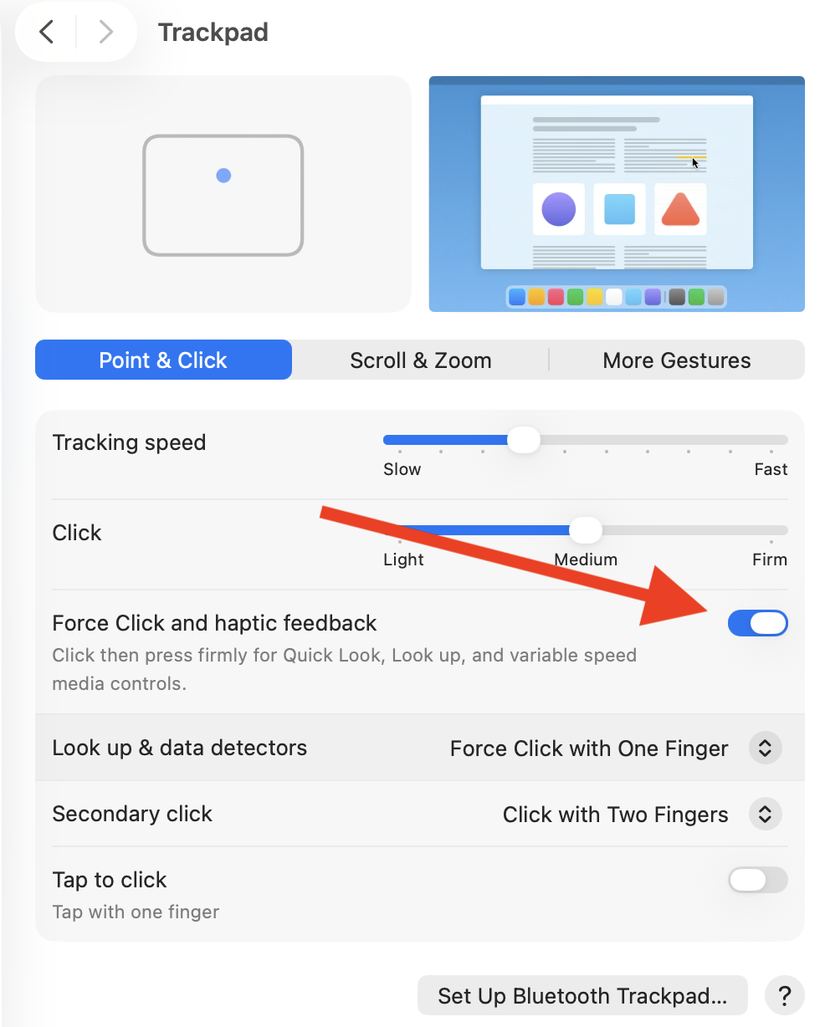
— Conflict with the Force Click setting on the trackpad
— Background third-party apps — clipboard managers, customization utilities — interfere with system gestures
— Temporary system glitch that isn't resolved by the first restart
How to Fix It: Step-by-Step Solutions
1. Drag onto the folder name, not the icon
In Finder's List view, dragging a file onto a folder icon sometimes isn't recognized. Try dragging it onto the text name next to it — it might not be obvious, but it works right away for many users.
2. Disable Force Click on the trackpad
Go to System Settings → Trackpad → Point & Click. Turn off "Force Click and haptic feedback". After that, check if drag and drop works.
3. Enable three-finger drag
Go to System Settings → Accessibility → Pointer Control → Trackpad Options. Enable "Three-finger drag". This mode makes initiating the gesture more stable and often fixes the issue.
4. Relaunch Finder
Press Command + Option + Escape, select Finder in the list, and click "Relaunch". This helps temporarily, allowing you to continue working normally.
5. Restart your Mac a few times
It sounds strange, but some users report that one restart didn't help, but a second one did. Try restarting your Mac twice in a row, especially if the issue came back after the first time.
6. Start your Mac in Safe Mode
Safe Mode loads only essential system components — without third-party extensions and utilities. Start your Mac in Safe Mode, test drag and drop, then exit Safe Mode and test again. If everything works in Safe Mode, a background app is causing the issue.
7. Use keyboard shortcuts as a temporary workaround
Until the issue is resolved, files can be copied and moved using Command + C and Command + V. It's not a complete replacement, but it lets you keep working without wasting time.
If none of these steps helped, bring your device in for diagnostics at iClub Service. We'll figure out what's causing the issue and get your Mac back in working order.