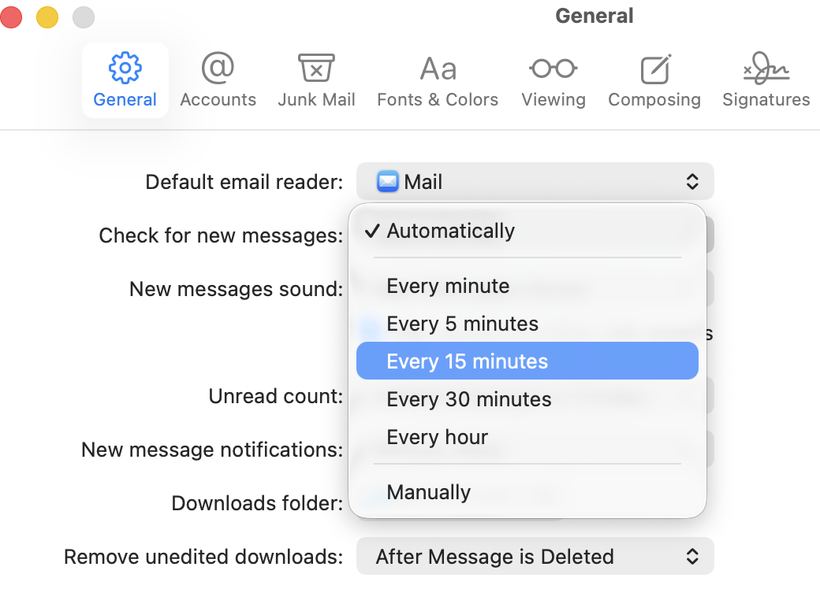
After updating macOS to Tahoe (26.x), many Mac users notice the same thing: the Mail app constantly displays "Loading Messages" — sometimes for hours, sometimes for days. Some left their Mac on overnight and found the same picture in the morning.
What's confusing: mail continues to work normally. New emails arrive, sending works. But the endless progress bar causes concern — and that's understandable.
Why this happens
— Mail cache got corrupted or outdated after the system update
— A conflict arose between the new macOS version and saved mail client data
— Background sync process hung and won't complete
— Mail is rebuilding the mailbox index but got stuck in a loop
Most users didn't experience this behavior before Tahoe.
How to fix it
Method 1: Reboot in Safe Mode
Safe Mode clears system caches — this often helps Mail start fresh without hanging.
1. Shut down your Mac completely.
2. On Apple Silicon Macs (M1/M2/M3/M4): hold the power button until the startup options screen appears. Select your disk while holding Shift. On Intel Macs: immediately hold Shift when turning on.
3. Log in to the system in Safe Mode.
4. Restart your Mac normally.
5. Open Mail and check — the "Loading Messages" message should disappear.
This method helps many users right away. Sometimes the problem returns after a few days — then move on to the next step.
Method 2: Rebuild Mail database manually
1. Quit Mail (Cmd + Q).
2. In Finder, press Cmd + Shift + G and navigate to: ~/Library/Mail
3. Find the folder with the version number (e.g., V10) and move it to the desktop — this is a backup copy.
4. Open Mail. The app will create a new structure and begin downloading messages from scratch.
5. If everything works normally, you can delete the backup copy.
Keep in mind: re-downloading may take time, especially if the mailbox is large.
Method 3: Reconnect your mail account
1. Open Mail → Preferences (Cmd + ,) → "Accounts" tab.
2. Select the problematic account and delete it.
3. Restart your Mac.
4. Add the account again — Mail will start syncing from scratch.
If the problem persists
This is a known quirk of macOS Tahoe — Apple is already aware, and a fix will likely come in one of the upcoming updates. Until then, the described methods help most users. If Mail continues to hang or you're unsure about your actions — come for free diagnostics at iClub.pro. We'll figure out the cause and get your mail back to normal operation.