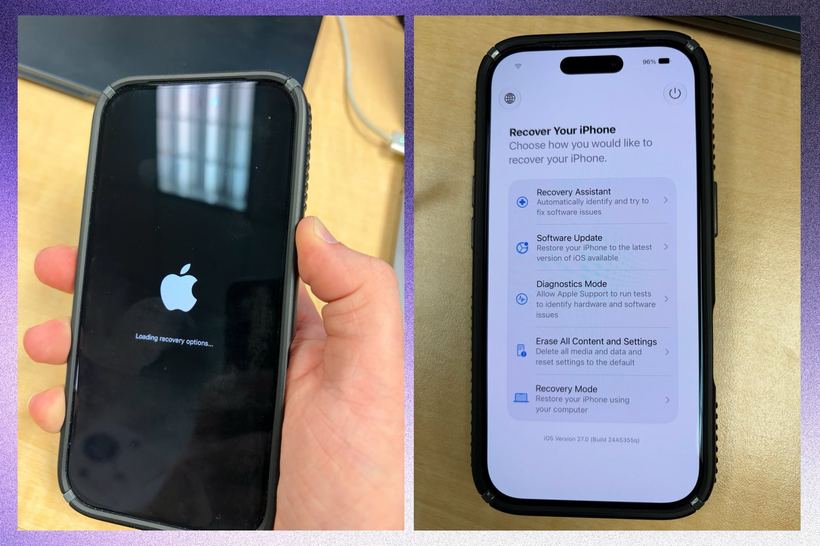
If your iPhone freezes, stops booting, or starts glitching after an update, there used to be no way out: you needed a computer with iTunes or Finder. In iOS 27, Apple added a built-in recovery mode modeled after macOS Recovery. Now, most system issues can be resolved directly from the phone, without extra cables or devices.
When to use recovery mode
This tool will help in the following situations:
- iPhone is stuck on the Apple logo and won't go any further
- After an iOS update, the phone is unstable or shows errors
- The device restarts on its own for no apparent reason
- The phone is lagging significantly, and a standard restart doesn't help
- You need to check why the camera, screen, or another component stopped working
How to open recovery mode
- Turn off your iPhone completely.
- Press and hold the side power button.
- Keep holding until the text "Loading recovery options" appears under the Apple logo.
- Release the button and wait for the recovery menu to load.
What is available in the menu
Once loaded, five sections will appear on the screen:
- Recovery Assistant — asks questions and guides you step-by-step to solve the problem
- System Update — installs the latest version of iOS without a computer
- Diagnostics Mode — checks the performance of the screen, battery, cameras, speakers, and other components
- Erase All Content and Settings — factory reset if other methods haven't helped
- Recovery Mode via Mac — the classic method for complex cases involving a computer connection
How to proceed step-by-step
- Start with the Recovery Assistant — it will identify the type of problem and suggest a suitable solution.
- If errors appeared after an update, select System Update and install the latest version of iOS.
- If you want to understand the cause but aren't ready to lose data, run Diagnostics. It will show whether the problem is software or hardware-related.
- If your data is backed up in iCloud or a backup, select Erase All Content. It's radical, but often the most reliable method.
- When nothing else helps, proceed to Recovery Mode via Mac.
What to do if diagnostics reveal a hardware problem
Built-in diagnostics are a useful tool to immediately understand the nature of the breakdown. If it shows a hardware error, reinstalling the firmware won't help. No software reset will fix a broken connector, a degraded battery, or a damaged motherboard.
If recovery mode doesn't start, the menu doesn't appear, or the problem persists after all steps, come to Iclub Service for diagnostics. A technician will check your device, determine the cause, and advise you on how to fix it.