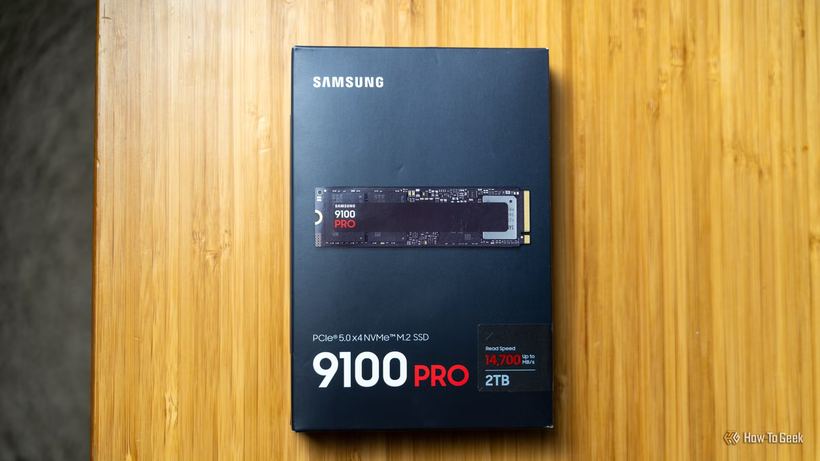
Many people think that since an SSD has just been purchased, it must be in perfect condition, and files can be transferred to it without any worries. This is a common misconception that sometimes ends in data loss.
A new drive has not yet been "broken in": it hasn't worked under load, hasn't heated up, and hasn't encountered the specific quirks of your system. Factory defects are rare, but they are very real. And they usually reveal themselves at the most inconvenient moment—right after you have wiped your old drive.
Why a new SSD might let you down
— Factory defects: a small percentage of drives come with defects straight from the factory.
— Damage during transport: the drive could have been impacted before it reached you.
— Outdated firmware: some errors are only fixed by updating the firmware.
— System incompatibility: the drive might not work well with your controller or motherboard.
— Overheating: an SSD without proper cooling can freeze during its first large write operations.
How to check your SSD before transferring data
1. Make sure the drive is detected correctly. Open Disk Management (in Windows) and verify that the drive is visible and shows no errors.
2. Update the firmware. Run the manufacturer's proprietary utility—Samsung Magician, Crucial Storage Executive, or Kingston SSD Manager—and install the latest firmware version.
3. Check the drive's health via S.M.A.R.T. Open the S.M.A.R.T. data in CrystalDiskInfo or the manufacturer's utility. Errors, overheating, or warnings are reasons not to trust the drive with important files.
4. Run built-in diagnostics. Most proprietary utilities offer a drive test. It will take anywhere from a few minutes to half an hour, but it will reveal defects before they affect your actual data.
5. Perform a test write. Copy a folder of several gigabytes to the new SSD, then copy it back and open a few files. If it completes without errors or freezes, the drive has passed its initial check.
6. Don't rush to wipe your old drive. Keep your important files on the old drive for another 2–4 weeks after the transfer. Until the new SSD has worked in real-world conditions, it is your insurance policy.
Backups are more important than confidence in a drive
Even an SSD that has passed all tests can fail. The 3-2-1 rule always applies: three copies of data, on two different media, with one stored off-site. A new drive is not a replacement for a backup, but just another storage location.
If the drive is acting strangely, isn't being detected, or you are unsure of its condition, come to Iclub Service for a check-up. We will test the drive, assess the risks, and help you save your data. Diagnostics are free.