If you've encountered the problem of calls appearing on another iPhone (for example, your calls showing up on your wife's phone, and her calls on your smartphone) and want to disable synchronization, you'll need to perform a series of specific actions.
First, let's clarify the situation with Family Sharing itself. This feature is designed so that a single Apple ID isn't used across different smartphones (instead, you can easily share purchases with payment for content for all family members).

- Go to "Settings" — "Apple ID" — "Set Up Family Sharing."
- Select "Get Started" and specify the payment method for purchases.
- Go to the "Family Members" section, where you can add Apple ID accounts (up to 6 accounts).
For your wife, children, and other users, you'll need to create a new Apple ID. This way, no information about calls, contacts, or other data will be transferred from device to device.
If you've decided to stay with one Apple ID:
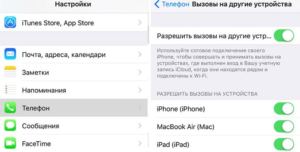
In this case, you don't need to set up Family Sharing. Simply disable synchronization between devices.
- Go to "Settings" — "Phone" — "Calls on Other Devices" (disable the "Allow Calls" option).
- Open the "Apple ID" — "iCloud" section and turn off iCloud Drive.
If an app's toggle on your iPhone is enabled, then data synchronization across different devices may occur through the cloud. To disable synchronization in third-party apps, you need to access the settings; as for native apps, their synchronization will always occur when iCloud Drive is enabled.