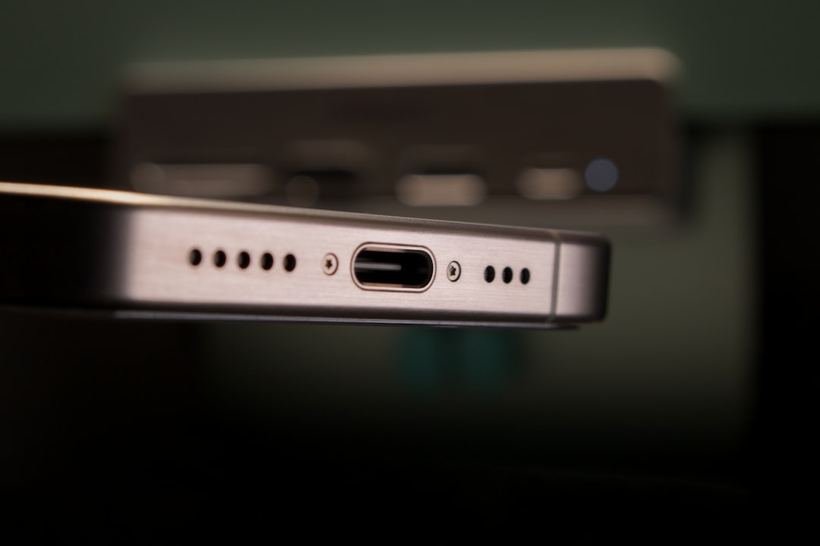
The situation is a classic: you connect your laptop to a charger or monitor via USB-C, and nothing happens. The indicator doesn't blink, the screen doesn't turn on, the system doesn't respond. You immediately want to blame the cable, but in practice, there are many more reasons — and some can be fixed in five minutes, while others require a soldering iron.
Why USB-C is so unpredictable
USB-C looks like one small connector, but inside it's an entire ecosystem of protocols. It can carry power (USB Power Delivery), video signal (DisplayPort Alternate Mode or Thunderbolt), and regular data transfer all at once. That's exactly why, when something doesn't work, finding the culprit can be difficult.
Common causes we see
The wrong or killed cable
The most common story. Not all USB-C cables support everything. A cheap cable for 200 rubles will charge a phone, but won't handle a 100W PD charger or a video signal — it simply lacks the necessary wires. People bring in a MacBook Air M2, complaining it doesn't charge from our adapter. You look — it's a cable from a USB hub that was lying around. Swap it for a normal one — everything works.
Physically damaged port
The USB-C connector is a delicate thing. If the laptop was dropped or the cable was yanked at an angle, the contacts inside can bend or break off the board. We see this regularly — especially on Dell XPS and Lenovo ThinkPad, where the port is located on the edge of the case and takes the first hits. Symptoms vary:
- the connector noticeably wobbles or squeaks when plugged in
- the laptop charges only if you hold the cable at a certain angle
- charging works, but video doesn't, or vice versa
- traces of oxidation or a dark coating are visible inside
Charger without Power Delivery
Modern laptops charge via USB-C only with the PD protocol. A regular power supply without PD simply won't negotiate current and voltage with the laptop — the laptop either won't charge at all or will charge painfully slowly. Check if "Power Delivery" or "PD" is written on the charger, and how many watts it outputs.
Monitor or hub does not support Alternate Mode
For a video signal to pass through USB-C, both the laptop and the monitor (or the hub between them) must support DisplayPort or HDMI Alternate Mode. If the monitor is old or the hub is cheap, there will be no picture. This is not a breakdown, just hardware incompatibility.
Firmware or driver issues
Sometimes all the hardware is fine, but the port stops working after a system update. We encounter this on MacBooks after a macOS update — the port stops outputting video, although it continues to charge normally. Rare, but it happens.
What to try yourself
- Replace the cable — take one that is known to be working, preferably branded or certified with PD and video signal support. The cable is the culprit in about a third of cases.
- Try another port on the same laptop if there is a second USB-C.
- Connect the device to another monitor or charger — to understand if the issue is in the laptop or the peripherals.
- On Windows, check Device Manager for USB controller errors. On Mac, try resetting SMC (for Intel) or just restart.
- Update the laptop firmware and drivers — sometimes manufacturers fix such bugs with regular patches.
When a master is indispensable
If the port is loose, with traces of oxidation or melting visible, this is physical damage. DIY repair won't help here, and clumsy attempts can add more problems. There was a case: an ASUS ZenBook was brought in, the owner tried to clean the port himself with a needle and bent the contacts for good, even though the problem initially could have been solved for pennies.
Replacing a USB-C port on a laptop is component-level soldering, sometimes including replacing the controller chip. Depending on the model, the work takes from a couple of hours to a day, and the cost is usually from 2,500 to 6,000 rubles. Thunderbolt ports on MacBooks are more expensive; they have their own specifics.
If none of the above helped — come to Iclub Service at Kommunisticheskaya 35. Diagnostics are free, we'll figure it out quickly.