Why a laptop starts to roast
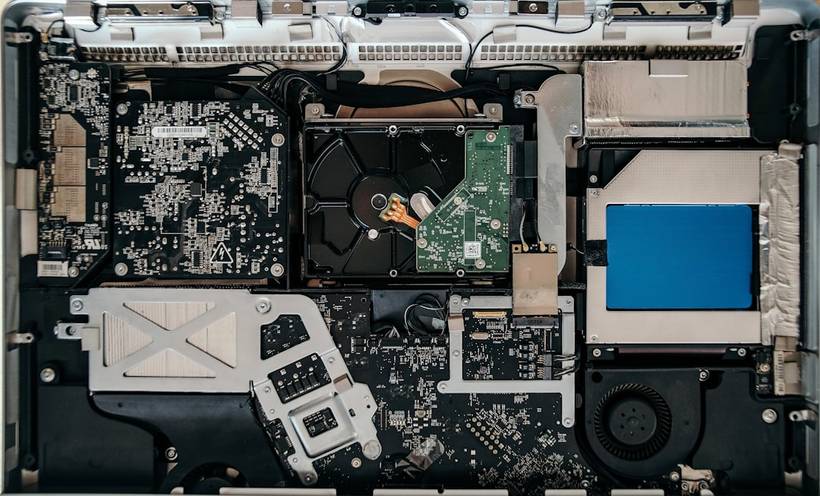
We had a MacBook Pro 2019 brought in — the owner said it freezes during use, is hot as an iron, and the fan is screaming loud enough to be heard across the room. You look inside — there is a layer of dust as thick as a felt boot. We cleaned it, applied fresh thermal paste — and that was it, the person left happy. There was no breakdown at all.
This happens often. The laptop overheats, and the owner is already preparing to replace the motherboard. But before panicking, you need to figure out what exactly is going on.
Where the heat comes from
The processor and graphics card generate heat during operation. This is normal. The cooling system — heat pipes, radiator, and fan — must dissipate this heat outward. When it is clogged with dust, hot air simply cannot get out. The temperature creeps up, the processor starts to throttle — intentionally reducing speed to avoid burning out. This leads to lag, freezes, and sudden shutdowns.
The second scenario is that the thermal paste has dried out. This is the layer between the processor and the copper heat sink plate. Over time, it loses its properties, cracks, and the contact worsens. Heat is not transferred to the radiator — even if the fan is clean.
The third option is a real breakdown: a dead fan, a detached heat pipe, or something wrong with the power supply.
How to know if it is just dust
There are several signs that point specifically to clogging rather than something serious:
- The laptop is over 2–3 years old and has never been cleaned
- The fan is working — you can hear it humming, but almost no hot air is coming out of the vent
- It heats up under any load, even when only a browser is open
- The problem appeared gradually, not suddenly — everything was fine six months ago
- There is a lot of dust in the room, or there are pets
Download HWMonitor or AIDA64 and check the processor temperature at idle. The norm is 40–55°C. If it is already 70–80°C at idle, that is a warning sign. Under load, above 95°C — the processor is definitely throttling, the laptop is defending itself against overheating as best it can.
What you can do yourself
First — blow out the vents with a can of compressed air. Do not use a vacuum cleaner: it creates static and does not pull well from narrow channels. You can find a can in any computer or hardware store, it costs about 300–400 rubles.
You need to blow into the outlet from the outside, directing the dust back out — and immediately clean up what flew out. The procedure is simple, but temporary: you cannot really remove the dust from the blades and the radiator itself this way.
Second — place the laptop on a hard surface or buy a stand. A soft bed or sofa blocks the air intakes from below. It might seem like a small thing, but the temperature can drop by 10–15°C just from this.
When blowing it out is not enough
If you have blown it out and changed its position, but the laptop is still hot and noisy, a full internal cleaning is needed. This involves disassembly: removing the cover, taking out the fan, cleaning the radiator, and replacing the thermal paste. For most models, it is not scary, but it requires care and an understanding of the specific device's design.
There was a case: a Lenovo ThinkPad E14 was brought in after the owner tried to clean it himself. He applied a half-centimeter layer of thermal paste — "just to be sure." As a result, it dried into chunks, the contact became even worse, and the laptop heated up more than before the "repair." We had to redo everything. Thermal paste should be applied in a thin, even layer — a pea-sized drop spread over the processor cover. No more.
When it is no longer just dust
There are situations where cleaning will not help:
- The fan does not spin at all or rattles during operation — it is dead
- The laptop turns off a few minutes after starting — the problem might be deeper in the hardware
- After cleaning, the temperatures did not drop — meaning the issue is something else
- The battery has swollen on the case — this is a separate issue, but it also generates extra heat
If you are not sure, it is better not to disassemble it yourself. A stripped screw or a torn ribbon cable will add work for the technician and expenses for you.
If it did not help — come to iClub
Our diagnostics are free. Bring your laptop — we will check the temperatures, test the fan, and tell you honestly: do you need a cleaning or something more serious. Cleaning with thermal paste replacement usually costs 1 500–2 500 rubles and takes an hour to an hour and a half. If the problem turns out to be deeper, we will also tell you what exactly is wrong and how much it costs, without any fluff. We are at Kommunisticheskaya, 35.