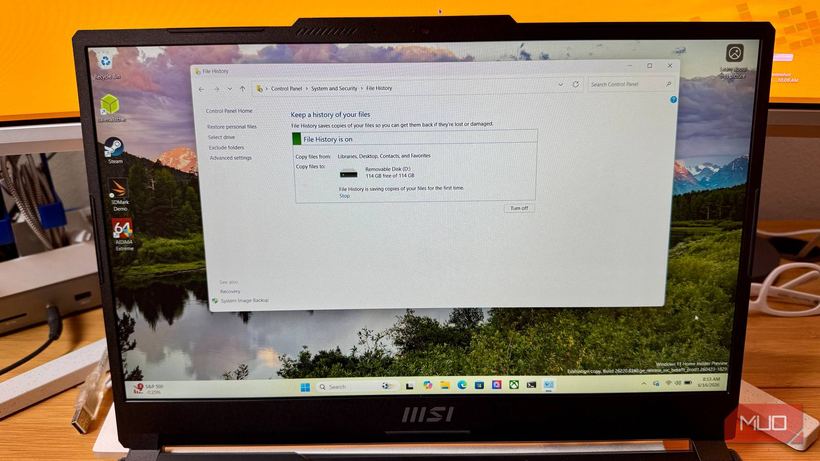
Have you ever accidentally overwritten a file and lost hours of work? You edited a document, saved it — and then realized the previous version was better, but there was no way to get it back. Windows has a built-in tool that solves this problem, but it is turned off by default.
Why files are lost forever
Standard backups take a single snapshot of your files at a specific moment. If you overwrote a document between two backups, the intermediate version is gone forever.
Main reasons:
— Accidental saving over the desired version
— Standard backups do not store version history
— The Windows versioning tool is disabled by default
— In Windows 11, it is hidden in the "legacy" settings section, which few people check
What is File History
File History is a tool built into Windows since version 8. Every hour, it automatically saves copies of your files to an external drive. This is not just a backup, but a full chronology of versions: you can roll back to a version from an hour, a day, or a week ago.
By default, it protects the following folders: Desktop, Documents, Pictures, Music, Videos, and offline OneDrive files.
Important: the tool does not save Windows itself or installed programs — only your personal files.
How to enable it: step-by-step guide
1. Connect an external drive to your computer via USB. The capacity should be sufficient to store several copies of your files — a 1TB drive is inexpensive these days.
2. Open the Control Panel (find it via the Start menu search).
3. Go to the "System and Security" section.
4. Click on "File History".
5. Windows will detect the connected drive and suggest it as storage.
6. Click "Turn on" — done, the tool is running.
Fine-tuning
In the left panel, click "Advanced settings" to:
— Change the save frequency (minimum is every 10 minutes instead of the standard hour)
— Set the retention period for versions (default is forever, until space runs out)
— Add any folder: right-click it in File Explorer → "Include in library"
How to restore the desired version
1. In the Start menu search bar, type "Restore your files with File History".
2. A version browser will open — all saved copies in chronological order.
3. Scroll back using the arrows, view file previews, and select the version you need.
4. Click "Restore".
Why you shouldn't replace this with the cloud
In Windows 11, Microsoft promotes backup via OneDrive — it requires an account and takes up cloud storage space. File History works completely offline, without subscriptions, and your data remains on your own drive.
The "legacy" status does not mean the tool will stop working — Microsoft is simply not actively developing it. For protecting personal files, it remains one of the most reliable options on Windows.
If your data is already lost and File History was not enabled — don't panic. Specialists at Iclub Service handle data recovery from HDDs and SSDs. Come in for a diagnostic at: Novosibirsk, Kommunisticheskaya St., 35.