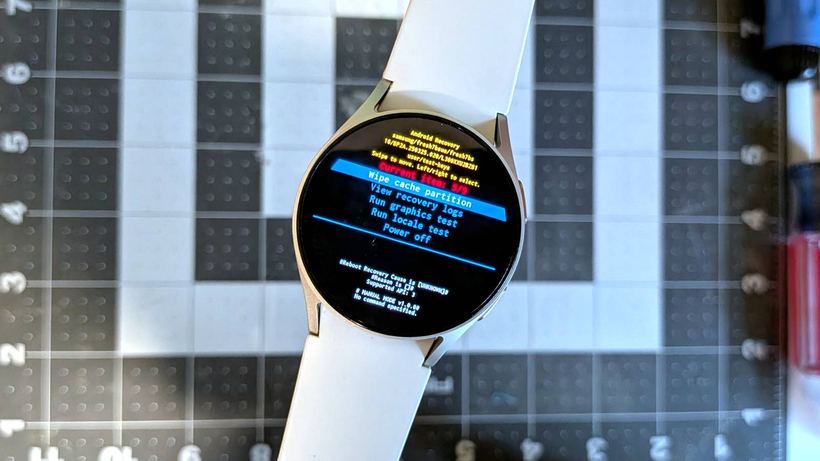
If your Galaxy Watch has stopped working properly with your smartphone—notifications are not coming through, Samsung Health is glitching, alarms are not going off—a standard reboot often does not help. There is a more effective method: clearing the system cache.
Why glitches occur
Any Android application—both on a smartphone and a smartwatch—creates two types of files:
— Data files: logins, settings, activity history. You should not delete these—you would have to set everything up again.
— Cache files: temporary data to speed up operation. Over time, these are the ones that cause problems.
The cache acts like "preparations": the app keeps what it needs close at hand to load faster. But over time, these files accumulate, become outdated, or start conflicting with updates. The system is supposed to clean them up itself, but in practice, this almost never happens. The result is freezes, synchronization errors, and unstable watch behavior.
When clearing the cache helps
— Notifications do not arrive or are delayed
— Samsung Health does not sync workouts and sleep
— Alarms do not go off
— Apps freeze or take a long time to open
— After an update, the watch started performing worse
How to clear the system cache: step-by-step guide
Read carefully and do not skip steps. The recovery menu looks unfamiliar, but there is nothing dangerous about it.
1. Turn off the watch: press and hold the side button, select "Power off" and confirm.
2. Enter recovery mode: press and hold the side button and the Back button simultaneously for 5 seconds until the screen with the "Reboot" inscription appears.
3. Select Recovery Mode: scroll the bezel to the "Recovery" item and press the side button to confirm. The watch will reboot and display the recovery menu.
4. Clear the cache: find the "Wipe cache partition" item and confirm. This deletes only temporary files—your data and settings remain untouched.
5. Reboot: select "Reboot system now". The watch will boot up in normal mode.
After rebooting, check synchronization. The first startup will take a little longer—the cache is being regenerated, this is normal.
If clearing the cache did not help
Clearing the cache solves most software glitches, but not all. If the problem persists, the next step is a full factory reset. This is a complete reset with data loss, so it is better to do it consciously.
If neither method helped, the cause may be hardware-related. Come in for diagnostics at Iclub Service—we will figure out what is wrong and offer a solution.