The Problem
The "Fast Charging" notification on the screen is reassuring — but it doesn't tell you how fast it actually is. Android doesn't display the real-time charging current, making it hard to tell if your phone is charging at its maximum speed.
The free Ampere app can help test this: it shows the current in milliamperes in real time. It often reveals that a smartphone is charging much slower than it should.
Possible Causes
— A weak charging adapter that doesn't support fast charging
— An unsuitable or damaged cable
— Fast charging is disabled in system settings
— Battery optimization is enabled — the phone deliberately slows down charging
— Overheating or too low device temperature
— Dirty charging port or worn-out battery
How to Fix It
1. Check the adapter. The specifications are printed on the back of the brick — for example, 9V ⎓ 2A or 5V ⎓ 3A. Multiply volts by amperes to get power in watts. Compare it with your smartphone's maximum wattage from official specs. If the adapter is weaker, replace it.
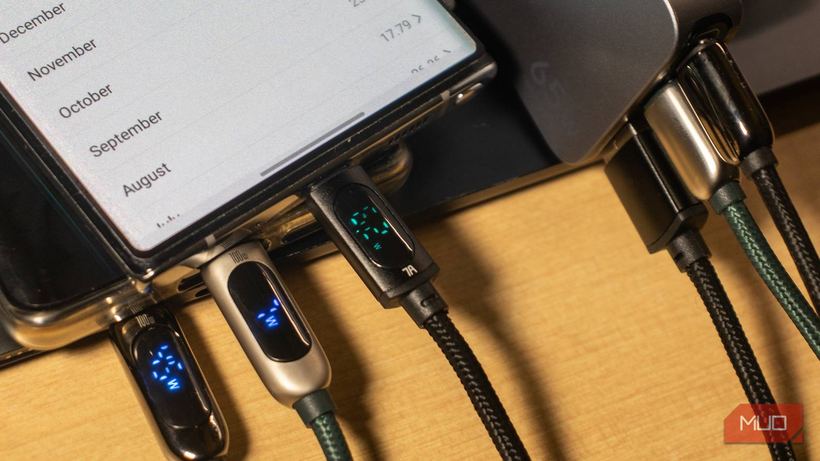
2. Try a different cable. The best option is the original cable that came with the phone. If you don't have it, test several USB-C cables and compare readings in Ampere. Cheap cables often don't support fast charging, even if they look identical.
3. Check charging settings. Go to "Settings" → "Battery" → "Charging settings" and make sure the "Fast charging" and "Fast wireless charging" toggles are turned on.
4. Disable battery optimization. This feature learns your habits and may stop charging at 80% at night or slow it down at certain times. If you need maximum speed, turn it off in the same battery settings.
5. Monitor the temperature. When the phone is overheated or too cold, it automatically reduces charging speed to protect the battery. Charge at room temperature, don't place the phone on soft surfaces, and remove the case if it retains heat.
6. Close background apps. Actively using your phone while charging will always lower the charging speed. Leave the screen off.
If Nothing Helped
If you've replaced the cable and adapter, checked the settings, and charging is still slow — the issue might be with the device itself: a dirty or oxidized port, a worn-out battery, or a fault in the charging circuit.
Visit iClub Service for diagnostics — it's free. We'll check the condition of the charging port, battery, and motherboard, and tell you exactly what needs to be fixed.