A month ago, my MacBook Pro started experiencing issues with certain keys double-registering. This isn't the first technical problem I've encountered with my Mac—I plan to write a separate post about that. In this article, I want to share methods for fixing the double key press issue and describe the approach I used. The solution is software-based.
Why does double-registering happen? It occurs because when a key is pressed down, the electrical contact closes twice for some reason. Since a person can't physically press the same key twice with a delay of just a few dozen milliseconds, the double-press problem can be solved by ignoring repeated presses of the same key within a certain timeframe.
Developer Xinhong Liu proposed a solution to this problem with a free macOS utility called Unshaky. This utility lets you set delays between key presses for each key individually. Let's look at how to use it:
- Download the archive with the latest version of Unshaky from GitHub.
- Extract the archive to a folder of your choice.
- Open Terminal.app and grant full access permissions to the file:
sudo chmod 777 Unshaky.app
- (you may need to do this)
- Copy Unshaky.app to the Applications folder.
- Open System Preferences → Security & Privacy → Privacy → Accessibility and add Unshaky to the list of apps with permission to control your computer.
- Open System Preferences → Users & Groups → Login Items and add Unshaky to the list of apps that launch automatically at login.
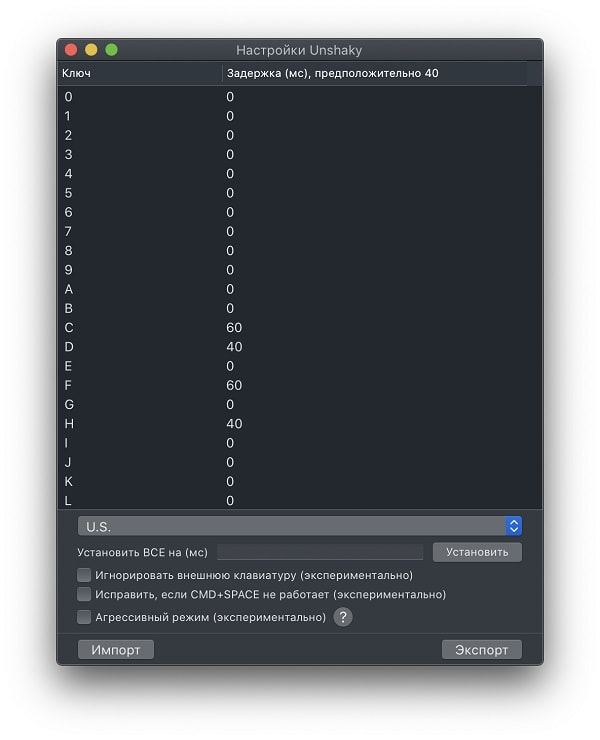
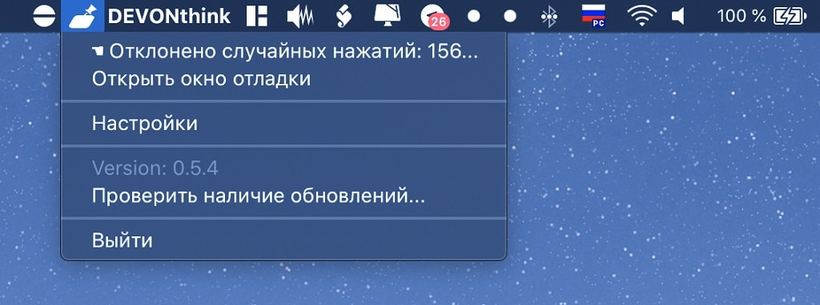
Now all that's left is to launch Unshaky and configure the delay for the problematic keys. The utility's author recommends starting with a 40 ms delay, but I find 60 ms more effective. Setup complete. The app icon will appear in the top menu and track the number of prevented double presses.