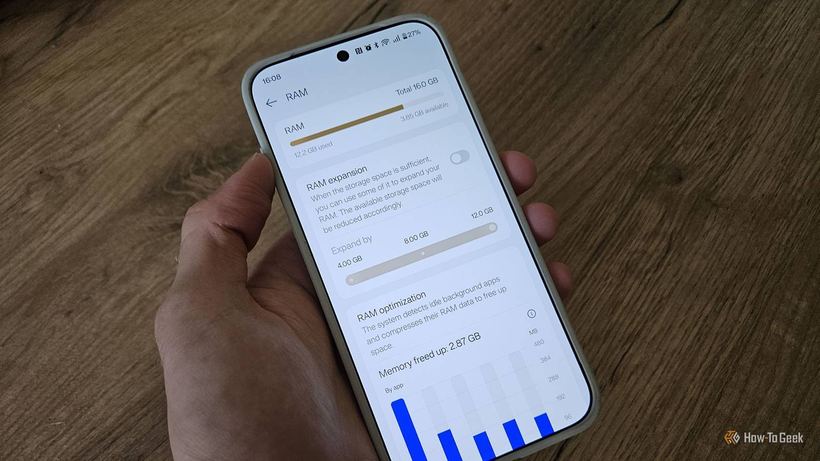
If your smartphone has become noticeably slower after a recent firmware update, don't rush to conclusions about wear and tear or the need for a replacement. Sometimes the reason lies in one specific setting that the manufacturer enabled automatically. We're talking about expanded RAM.
What is expanded RAM
Depending on the brand, this setting has different names: "RAM Plus", "Virtual RAM", "RAM Expansion", "Memory Fusion" — but the concept is the same. When the phone's RAM gets full, part of the slower internal storage (the one that stores files, photos, and apps) is allocated as a temporary "buffer" for background apps.
In theory, this helps: apps aren't completely closed, but rather "sleep" in this buffer and open faster than if they were launched from scratch. For phones with 3–4 GB of RAM, this feature can actually be useful.
Why expanded RAM can slow down your phone
In practice — especially on smartphones older than 3–4 years — the effect can be quite the opposite:
— Internal storage is significantly slower than RAM, and constant data swapping between them creates extra load on the system.
— Android starts moving apps into the "slow buffer" even when regular RAM isn't full yet, which slows down app switching.
— If internal storage is almost full (photos, videos, games), it starts running slower on its own, and expanded RAM puts additional load on it.
— The processor wastes resources on compressing and decompressing data every time you switch apps.
The bottom line: a phone with 6–8 GB of physical RAM often runs noticeably slower with expanded RAM enabled than without it. This is especially noticeable when switching quickly between several open apps.
How to disable expanded RAM
1. Open "Settings" on your smartphone.
2. Type "RAM" or "memory" in the search bar.
3. Find "Virtual RAM", "RAM Plus", "RAM Expansion", or a similar option.
4. Toggle the switch to "Off".
5. Restart your phone and use it for a few days.
If performance improves, you don't need this setting. If your smartphone starts closing background apps more frequently, turn it back on: it means physical memory isn't enough, and expanded RAM actually helps.
Free up storage space first
Lack of free space is another common cause of slowdowns. Before changing settings, do a quick clean-up:
— Delete apps you don't use.
— Clean up your gallery: delete duplicates, blurry shots, and unnecessary screenshots.
— Try to free up at least 15–20% of your total storage capacity.
After that, check your phone — it might speed up on its own.
If nothing helped
When a smartphone remains slow despite all attempts, the issue is likely beyond settings. The cause could be memory wear, overheating, firmware issues, or accumulated software junk. Stop by iClub Service for diagnostics at 35 Kommunisticheskaya Street in Novosibirsk: we'll figure out what's going on with your phone and give you an honest opinion on whether it's worth repairing or time to consider a replacement.