Morning. You open the lid — the screen is dead. You press the power button — silence. Panic sets in, especially if you have a work deadline or a term paper. Before running to a service center, go through this simple checklist — often the problem can be solved in five minutes without a technician.
Why your MacBook refuses to start up in the first place
There are several reasons, and not all of them are serious. The most common ones we see in our workshop:
- The battery is completely drained — especially common on 2019–2021 models with the T2 chip
- SMC (System Management Controller) glitch — after a sudden power cut or overheating
- Faulty charger or cable — MagSafe burns out, USB-C breaks at the base
- Oxidation or traces of moisture on the board — even if the laptop didn't technically fall into water
- Power chip failure or poor battery contact — this requires a technician
What to check yourself — step by step
1. Charge the laptop for at least 20–30 minutes
It sounds cliché, but it actually works. If the battery is deeply discharged, your MacBook might not respond to the power button for several minutes after plugging it in. Connect the cable, leave it alone, and wait. On older MagSafe chargers, look at the indicator: orange means charging, green means charged. If there is no light at all, the problem is likely with the power adapter itself.
2. Check the cable and power adapter
Try another cable or charger if you have one. USB-C cables are especially prone to breaking invisibly — they look fine on the outside, but the internal connection is broken. We had a case where a customer brought in a 2021 MacBook Pro 14″, swearing the charger was working. We plugged in ours, and the laptop came to life instantly. It turned out the original cable had broken near the plug by literally a millimeter, completely unnoticeable from the outside.
3. Reset the SMC
On MacBooks with Apple Silicon chips (M1, M2, M3, and newer), it's simple: shut down the laptop, wait 30 seconds, and turn it on normally. On Intel models with a built-in battery, press and hold left Shift + Control + Option + the power button simultaneously for 10 seconds, release them, and then turn it on as usual. The SMC often needs a reset after a sudden shutdown or prolonged heavy workload — it's not a hardware failure, just a firmware glitch.
4. Try a forced restart
Press and hold the power button for 10 seconds. If your MacBook is frozen in a state where the screen is dark but the system is technically running, this will wake it up. Release it, wait five seconds, and press the power button again.
5. Disconnect all external devices
USB hubs, monitors, flash drives, mice — unplug everything. Leave only the charger and try turning it on. Sometimes a single external device causes a conflict during startup, and the laptop simply refuses to boot.
When it's definitely time to see a technician
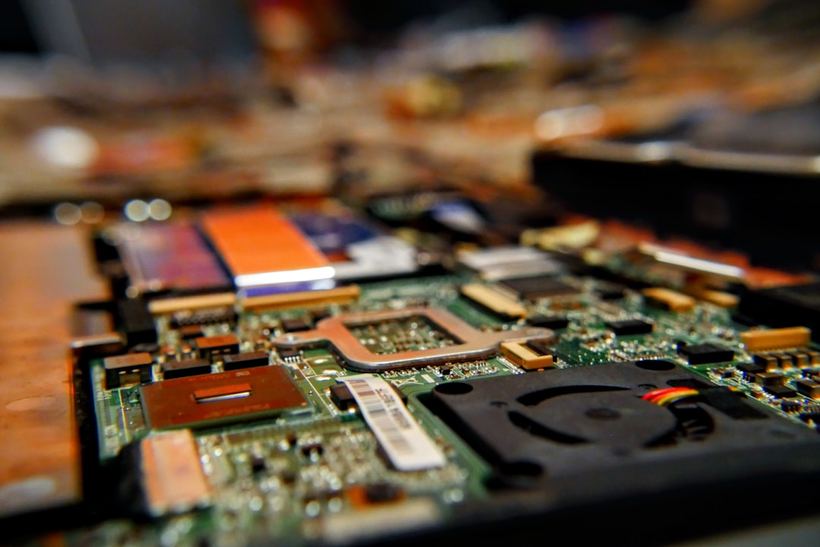
If you've gone through all the steps and the laptop still doesn't respond, the problem lies deeper. Most often, it's one of three things: a dead power controller on the logic board, a swollen or degraded battery, or hidden traces of moisture inside.
We often get 2019–2020 MacBook Air 13″ models with complaints that the laptop simply stopped turning on for no apparent reason. Upon opening it up, we find a swollen battery — it presses against the trackpad from underneath, disrupting connections, and the system won't start at all. From the outside, it's completely unnoticeable, but inside, the picture is immediately clear.
Another story we see regularly: a 2017–2018 MacBook Pro after a glass of water was spilled nearby — "right next to it, not on it." Moisture penetrates through the vents or gaps in the case, settles on the board, and oxidation begins within a couple of days. The laptop stops turning on just a week after the incident. The sooner it gets to the service center, the better the chances of getting away with just cleaning the board without expensive component replacements.
If it didn't help — come visit us
If your MacBook still hasn't come back to life after trying all of the above, come to iClub at 35 Kommunisticheskaya St. Diagnostics are free. We inspect it in front of you, explain what happened, and tell you how much the repair will cost. No pushy upselling.