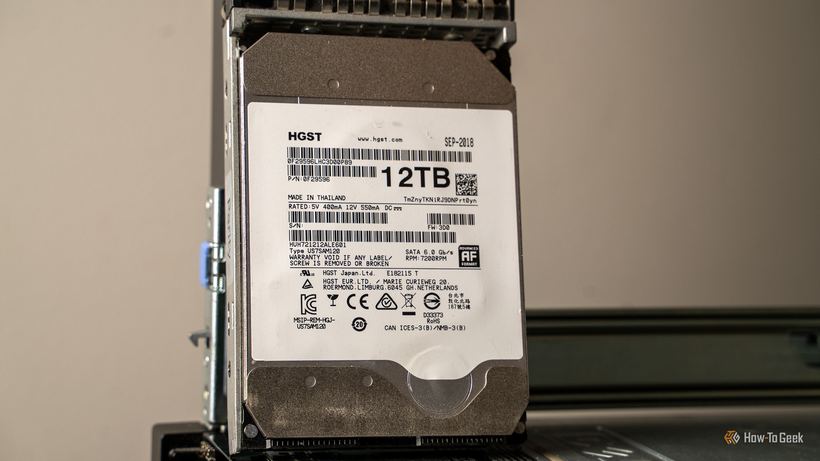
Many people buy a network-attached storage (NAS) device and then install the first hard drive they come across—the cheapest one or one left over from a PC upgrade. This is a mistake that can lead to data loss, premature drive failure, and denial of warranty service.
The Problem
A desktop drive and a NAS drive look identical, but they are engineered for different conditions. A standard drive (such as WD Blue) is designed for moderate workloads during a workday, normal ventilation inside a computer case, and occasional shutdowns. A NAS operates differently—24/7, without days off, with continuous read and write operations from multiple users or services simultaneously.
Why a Desktop Drive Won't Last
— No workload rating. NAS drives have a clear limit—for example, WD Red Plus handles up to 180 TB per year. Desktop drives do not have such a metric because the manufacturer never intended them for this type of workload.
— SMR technology. Many budget desktop drives use Shingled Magnetic Recording (SMR), which significantly slows down RAID array rebuilding and can lead to its failure.
— Vibration and heat sensitivity. In a NAS with multiple drives, vibration from neighboring storage devices accumulates. Desktop drives are not designed for such conditions.
— Warranty voidance. Manufacturers explicitly state that installing a desktop drive in a NAS is misuse. Warranty service may be denied.
What to Choose Instead
1. Entry-level — WD Red Plus. Workload up to 180 TB/year, 3-year warranty, 24/7 operation support. Well suited for a home media server or backup storage.
2. Professional level — WD Red Pro. Workload up to 550 TB/year, 5-year warranty. For storage systems with a large number of drives and high traffic.
3. For video surveillance — WD Purple. Optimized for continuous recording from cameras. If the NAS is used solely as a video recorder, this is the right choice.
4. Alternatives: Seagate IronWolf and Toshiba N300 are equivalent product lines with comparable specifications.
How to Avoid Mistakes When Buying
1. Check the labeling: the name or description should include "NAS", "Red", "IronWolf", or equivalent.
2. Make sure the drive does not use SMR—look for CMR or PMR in the specifications.
3. Compare the workload rating with your needs: 180 TB/year is enough for home storage, while for work storage, choose with a margin.
4. Don't skimp on the warranty: drives with three-year and five-year coverage fail prematurely less often.
If the drive in your NAS is already making noise, disappearing from the system, or the RAID array has degraded, come to iClub Service for diagnostics. Diagnostics are free, and we will help you figure it out and find the optimal solution.